
How to make an AI explainer video (with text and diagrams that are actually correct)
A step-by-step guide to AI explainer videos: scripting, structure, visuals and why code-animated diagrams beat video-model guesses for anything with words or numbers.
The problem with AI explainers
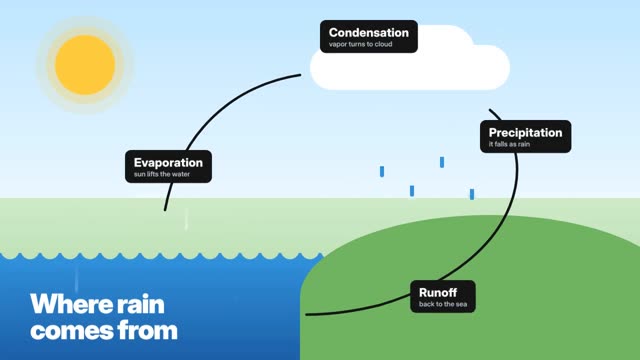
Video models are good at pictures and bad at words. Ask one for a labelled diagram of the water cycle and you'll get something that looks like a diagram, with labels that aren't quite words. For an explainer, where the whole point is that the viewer reads and understands, that's a deal-breaker.
The fix is to stop asking a video model to draw text. ClickPop builds explainers from scene templates animated in code: the diagram, the arrows and every label come straight from your script, so they're exactly right.
Step 1: pick one question
Good explainers answer one question. 'Where does rain come from?' beats 'Weather explained'. Write the question as the title; it's also your hook.
Step 2: write three to five beats
Each beat is one idea with one visual. For the water cycle: evaporation, condensation, precipitation, runoff. Keep narration short and never read out what's already on screen; let the visual carry the noun and the voice carry the why.
Step 3: choose a visual style
Clean diagrams suit science and process. Documentary footage with callouts suits 'how a city keeps its lights on' style topics. Flat colour suits money and productivity. Pick one and stay with it across a channel so viewers recognise your videos.
Step 4: approve before you render
In ClickPop's Faceless Studio, choose Explainer, give it the topic or paste your script, and review the outline: beats, on-screen labels and narration. Change anything, then render. Narration and captions come in the same file, in 16:9 or 9:16.
Step 5: open and close well
Open on the question with a visual already moving. Close on the one sentence you want remembered. If it's for Shorts, make the last frame flow back into the first so it loops.